

-

Website Design
Magento | Joomla | Wordpress | Custom
Call 818-850-1225
Call 661-347-0203
-

Online Marketing
SEO - Social Media - PPC - Blogs
Call 818 850-1225
Call 661-347-0203

Tech Support
PC | Windows Server | Apple | Linux
Call 818 850-1225
Call 661-347-0203
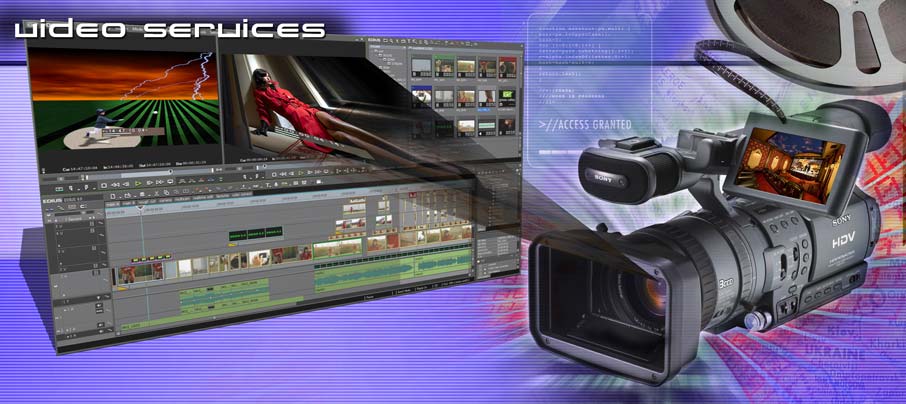
Video Editing
Video Editing | Taping | Formatting |Transfer
Call 818 850-1225
Call 661-347-0203
Make an Appointment Online HERE

IT Support
Computer Tech Support
Our certified technicians will help you with IT problems on any platforms - Apple - Server - PC - Linux. Installation, Programing...
See all Packages
Design
Website Design
Designing small business websites to match your needs. With Magento, Joomla or Wordpress back end, you can change content yourself, add pages...
See all Packages
Marketing
Online Marketing
Online marketing, SEO Search Engine Optimization, Social Media, Feed, Video, Photo gallery, Blogs...
See all Packages










About Biz Wiz Support

Owner Franck Vialy was an M.I.T. (Manager of Information Technology) in New York for an electronic manufacturing company equipped with AS400 and PC Network stations. Managing databases of over 45,000 part numbers and two warehouses. Mr. Vialy was also responsible for the implementation of new technology, migration of information, and logistics in mergers..
Read more...
Key Services

Magento e-commerce CMS Websign is a solid platform, stable and fully open source customizable

Joomla CMS is a stable website platform to introduce any small business and is fully customizable

Magento, Joomla and Wordpress have many website templates to choose from and to customize

Magento & Joomla full social media integration
Theme Features
- Extensions for many functions
- Social Media integration
- Manufacturer interface
- Quickbook interface
- Automatic Feeds available
- Live Chat Service with mobile apps
- Pictures Slider, gallery
- Magento Themes
Company Info

Call Us 818-850-1225
Call Us 661-863-9997


26834 Oak Branch Circle Santa Clarita, CA 91321